

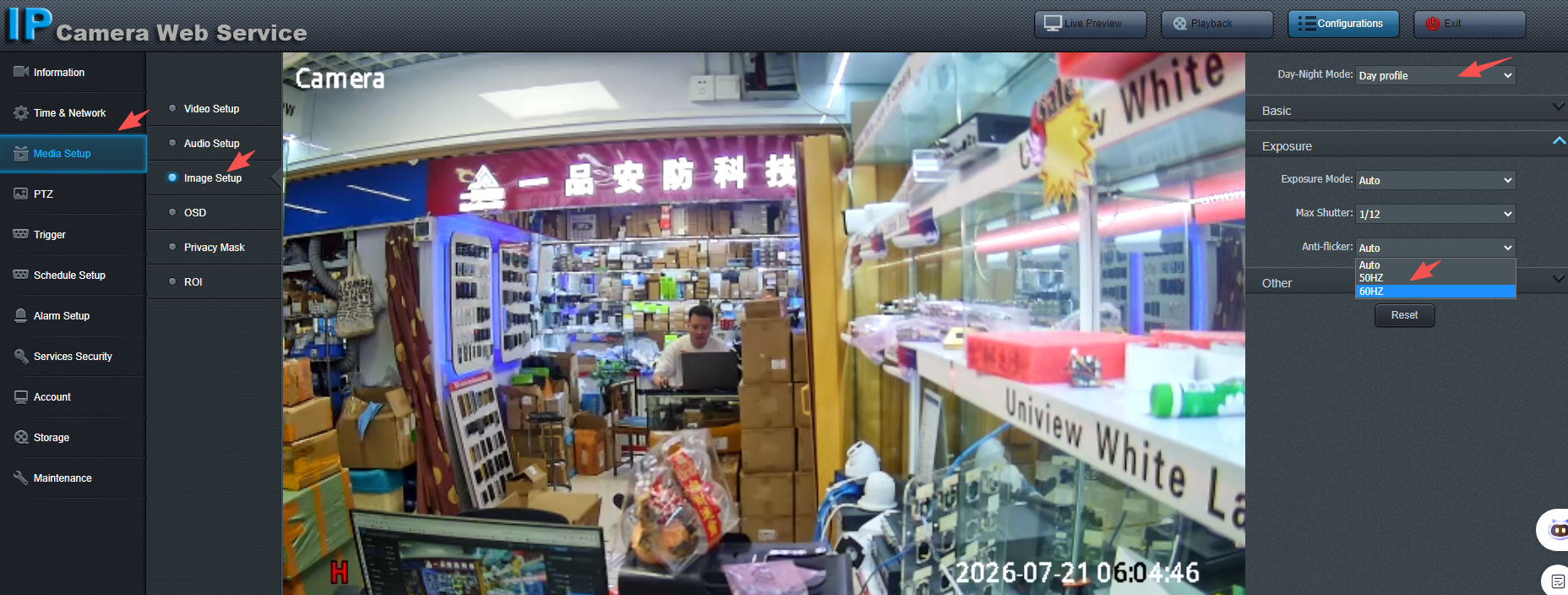
Q: My Remoteyes camera’s live view shows moving horizontal stripes or a flickering band across the image. Is the camera defective?
A: No, this is not a hardware fault. It’s almost always caused by a mismatch between the Remoteyes camera’s exposure frequency setting and the local power grid frequency (50Hz or 60Hz). Indoor lighting (especially LED and fluorescent lights) flickers at a rate tied to the local AC power frequency, and if the camera’s anti-flicker setting doesn’t match that frequency, you’ll see rolling stripes or bands in the image. This is easy to fix from the Remoteyes camera’s web interface.
Q: How do I fix it?
A: Please follow these steps:
- First, confirm (or set) your camera’s Video System under Media Setup > Video Setup > Rotation and Mirror > Video System: choose PAL if your region/equipment uses 50Hz, or NTSC if it uses 60Hz. Setting this first matters because the Anti-flicker frequency you pick next should match the same standard. See our guide on switching PAL/NTSC Video System for details.
- Log into the Remoteyes camera’s Web Service interface and click Configurations in the top right (if not already there).
- In the left menu, go to Media Setup > Image Setup.
- On the right panel, expand the Exposure section.
- Find the Anti-flicker dropdown (currently set to “Auto” by default).
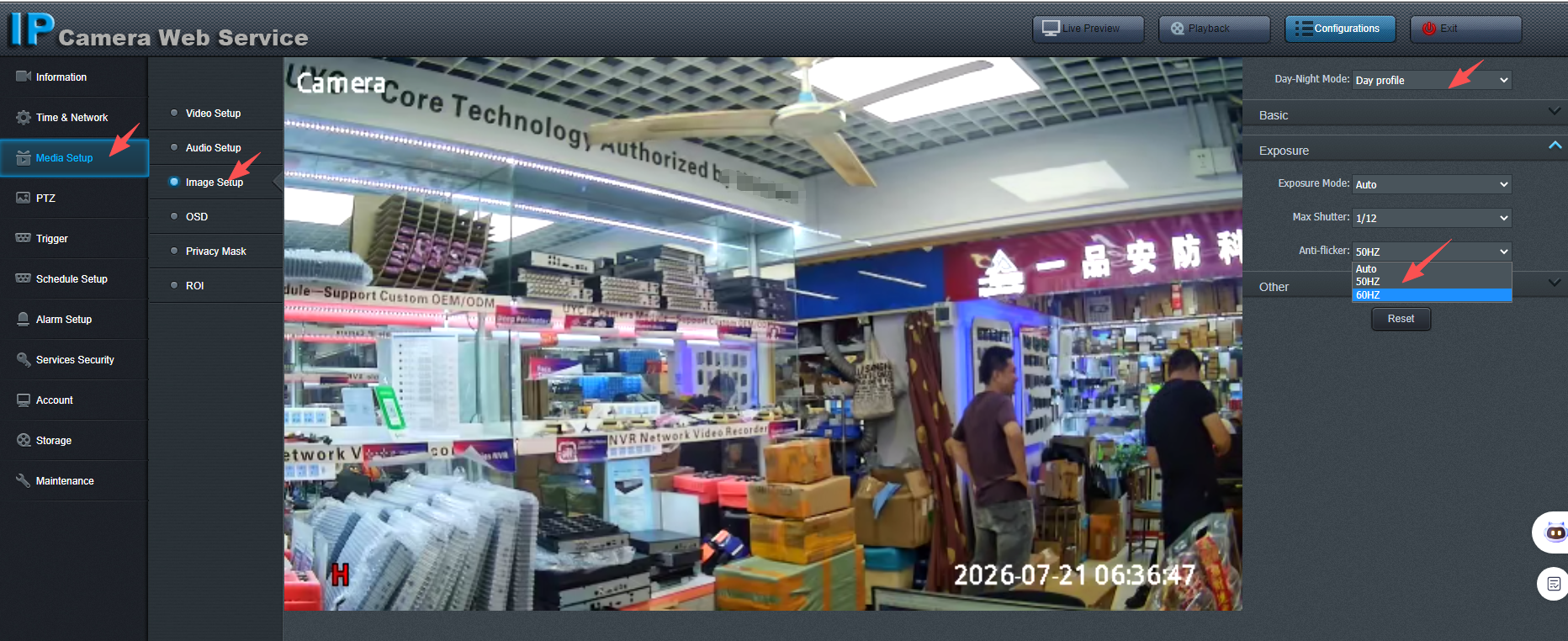
- Change it to match the Video System you just set: 50Hz if you chose PAL, or 60Hz if you chose NTSC.
- The image should update immediately — the stripes/flicker should disappear once the correct frequency is selected.
Q: How do I know whether my region uses PAL/50Hz or NTSC/60Hz?
A: This follows the local power grid frequency:
| PAL (50Hz) | NTSC (60Hz) |
|---|---|
| India | United States |
| Middle East / Iran | Canada |
| Russia, Kazakhstan, Turkey | Japan, South Korea |
| Europe | Philippines, parts of Central/South America |
If your recorder, NVR, or monitor was purchased locally, match the camera’s Video System and Anti-flicker frequency to whatever your existing equipment already uses, rather than just your country’s default.
Q: What if I’m not sure whether my region uses 50Hz or 60Hz?
A: You can simply try both settings and pick whichever removes the flicker on your live view. Alternatively, a quick web search for “[your country] power frequency” will confirm it.
Q: I changed the Anti-flicker setting but the image still isn’t stable. What else can I check?
A: A few things to check next:
– Make sure the Exposure Mode is set to Auto (visible just above Anti-flicker) rather than a fixed manual shutter speed, so the Remoteyes camera can adapt properly.
– Check the Max Shutter setting — an unusually fast shutter speed can make flicker more visible under artificial lighting.
– If you’re switching between day and night frequently, also check the Day-Night Mode setting at the top of the page, as lighting conditions differ between day and night profiles.
– If the stripes persist after adjusting these settings, please contact our technical support team with a screenshot of your current Exposure settings, and we’ll help you troubleshoot further.