

Q: My Remoteyes camera’s image looks washed out or has very dark shadows and blown-out bright areas at the same time — for example, a bright window next to a dark corner. How do I fix this?
A: This is a classic high-contrast / strong backlight scene, and it’s exactly what WDR (Wide Dynamic Range) is designed to fix. WDR lets the camera balance very bright and very dark areas in the same frame, so you can see detail in the shadows without the bright areas turning into a white blob. It’s especially useful for scenes with windows, doorways, skylights, or strong sunlight in the background. WDR is easy to turn on from the Remoteyes camera’s web interface.
Q: How do I turn on WDR?
A: Please follow these steps:
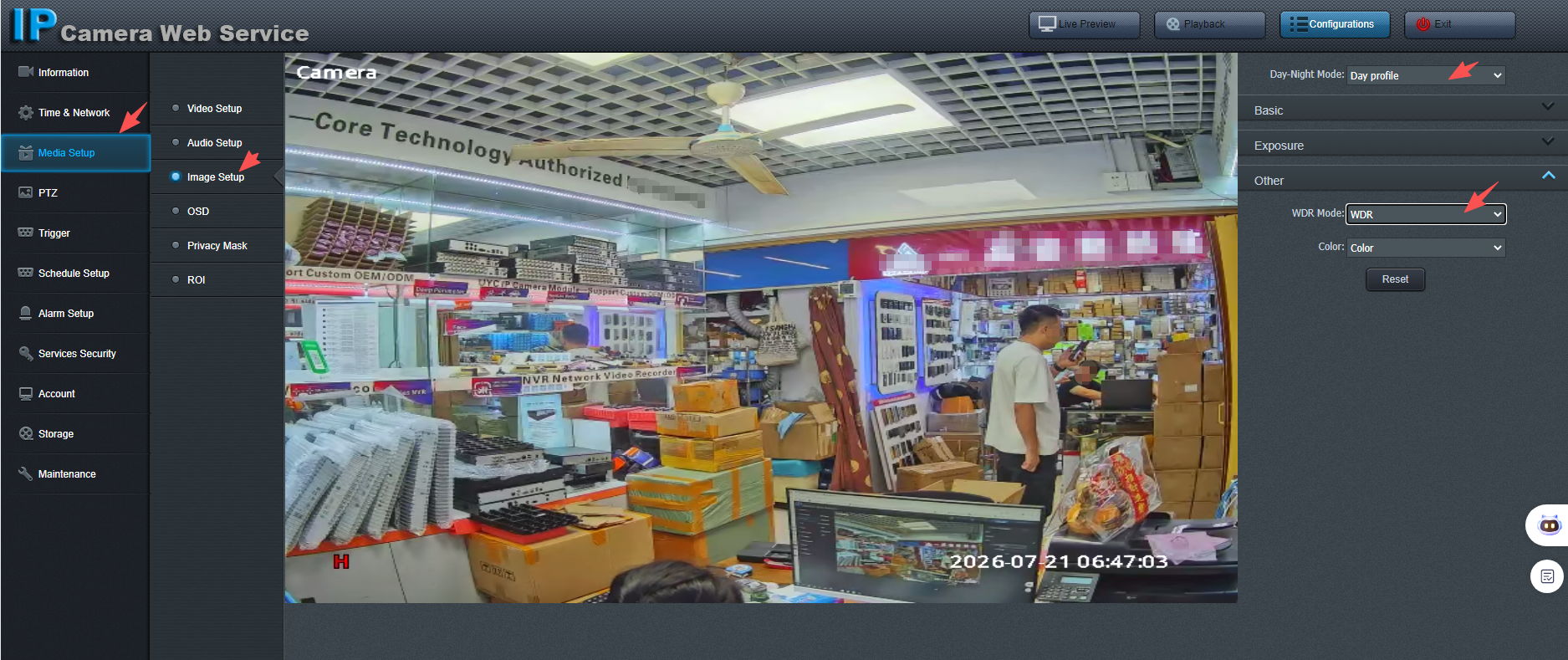
- Log into the Remoteyes camera’s Web Service interface and click Configurations in the top right.
- In the left menu, go to Media Setup > Image Setup.
- On the right panel, expand the Other section.
- Find the WDR Mode dropdown (set to “Off” by default) and change it to WDR.
- Click Reset if you want to restore the section’s defaults, or simply leave the page — the new WDR Mode setting is applied automatically.
Q: Do I need to change any other settings for WDR to work properly?
A: Usually no, but keep these in mind:
- Day-Night Mode: this is shown at the top of the same page (Day profile / Night profile / Auto). WDR mainly benefits the day profile, since it works on the color image sensor’s exposure handling; it has little effect once the camera switches to IR/night mode.
- Color: the Color dropdown in the same Other section controls whether the image stays in color or switches to black & white — this is independent of WDR and doesn’t need to change for WDR to take effect.
- After enabling WDR, give the camera’s live view a few seconds to re-balance the exposure — the improvement in shadow/highlight detail is usually visible almost immediately.
Q: I turned on WDR but the image looks a bit soft, or the frame rate seems to have dropped. Is that normal?
A: Yes, that can happen. WDR works by combining multiple exposures (or an extended dynamic-range sensor mode) into a single frame, which can slightly reduce sharpness or frame rate compared to normal mode, especially in low light. This is a normal trade-off for the improved dynamic range. If motion smoothness matters more than shadow/highlight detail for your scene (e.g., a corridor with even lighting), you can simply switch WDR Mode back to Off.
Q: WDR doesn’t seem to make a visible difference in my scene. What should I check?
A: A few things to check next:
- WDR only helps when there’s an actual strong contrast in the scene (e.g., bright sky vs. a dark room). In evenly lit scenes, you won’t see much change — that’s expected.
- Make sure Exposure Mode isn’t locked to a fixed/manual shutter speed elsewhere in the Exposure section, as this can limit how much WDR can adjust the image.
- Confirm the Day-Night Mode field at the top of the page is on Day profile (or Auto during daytime), since WDR has minimal effect in night/IR mode.
- If the backlit area is still too bright or the shadows still too dark after enabling WDR, please contact our technical support team with a screenshot of your current Image Setup page, and we’ll help you fine-tune it further.