

Q: My Remoteyes camera’s footage looks jerky/stuttery on my NVR or monitor, or the recorder shows a black screen / no signal when I connect the camera. Could this be a PAL/NTSC mismatch?
A: Yes, this is a very common cause. Video System (PAL or NTSC) is a legacy TV broadcast standard that many NVRs, monitors, and even some video players still expect to match on both ends. PAL is a 50Hz-based standard (25 fps), NTSC is a 60Hz-based standard (30 fps). If your Remoteyes camera’s Video System doesn’t match what your recorder or monitor expects, you can see a black screen, no signal, frame rate options that don’t make sense, or choppy playback. This is easy to check and change from the Remoteyes camera’s web interface.
Q: How do I check or change the Video System setting?
A: Please follow these steps:
- Log into the Remoteyes camera’s Web Service interface and click Configurations in the top right.
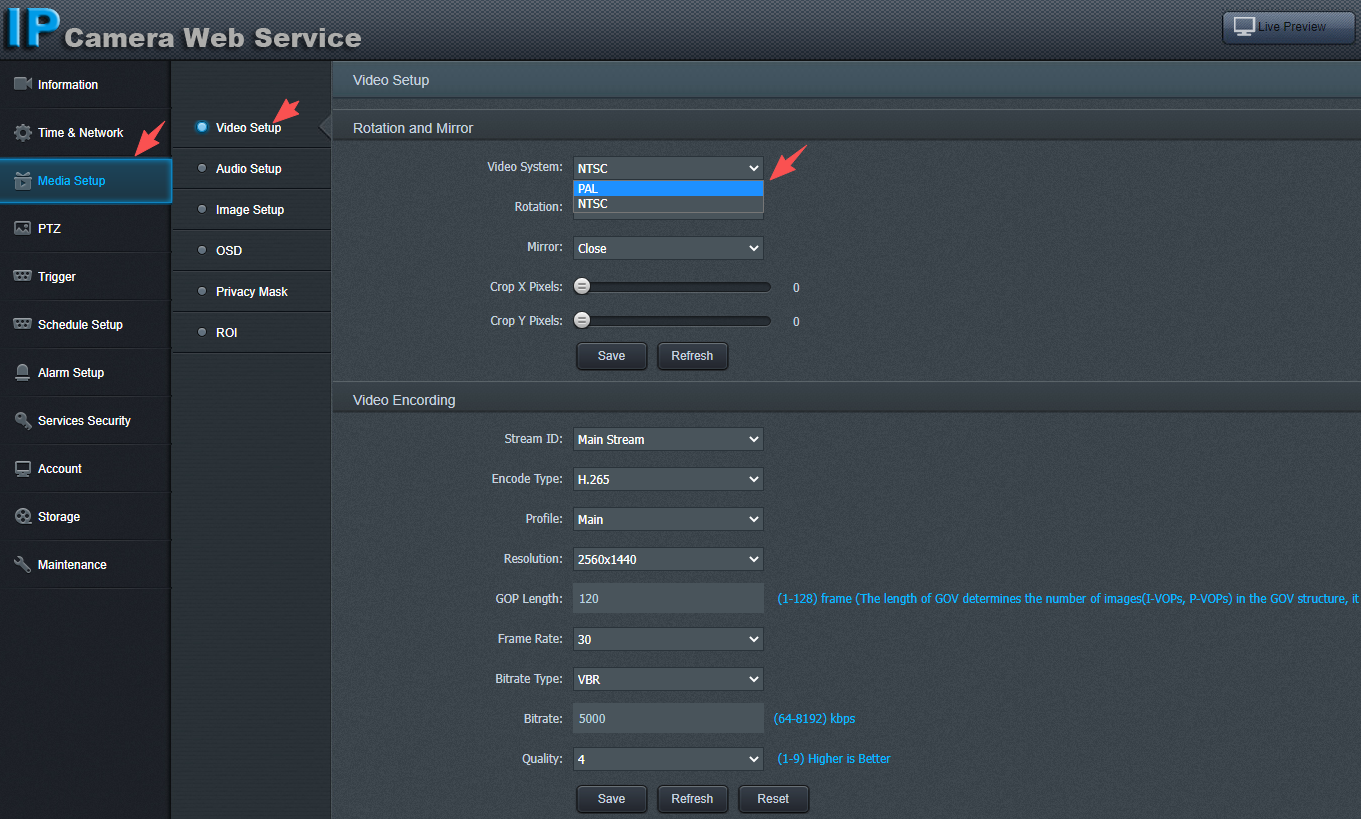
- In the left menu, go to Media Setup > Video Setup.
- In the Rotation and Mirror section at the top, find the Video System dropdown.
- Click it to see the two options — PAL and NTSC — and select the one that matches your region/equipment.
- Click Save to apply the change.
Q: How do I know whether to choose PAL or NTSC?
A: This follows the same 50Hz/60Hz split as your local power grid frequency. As a quick reference for our main markets:
| Set to PAL (50Hz / 25fps) | Set to NTSC (60Hz / 30fps) |
|---|---|
| India | United States |
| Middle East / Iran | Canada |
| Russia, Kazakhstan, Turkey | Japan, South Korea |
| Europe | Philippines, parts of Central/South America |
If your recorder, NVR, or monitor was purchased locally, it almost always already matches your region’s standard — so match the camera’s Video System to whatever your existing recording/display equipment uses, rather than just your country’s default.
Q: What happens after I switch the Video System?
A: A few things to expect:
- The camera may briefly restart the video stream (and in some firmware versions, reboot) after you click Save — this is normal.
- Once switched, check the Frame Rate option under Media Setup > Video Setup > Video Encoding: PAL caps out at 25 fps, while NTSC caps out at 30 fps. If your frame rate was set above the new cap, it will be adjusted down automatically.
- If you’re recording to an NVR, make sure the NVR channel is also configured for the same Video System — a mismatch here is the most common reason a camera shows up as “no signal” after switching.
Q: I switched to the correct Video System but I’m still getting a black screen or the image still looks wrong. What else can I check?
A: A few things to check next:
- Give the camera 30–60 seconds after saving to fully restart its video stream before assuming it’s still wrong.
- Double check the Resolution and Encode Type (H.264/H.265) under Video Encoding are supported by your NVR or monitor — an unsupported resolution/codec can look identical to a Video System mismatch.
- If you’re viewing through a third-party NVR or software, confirm it was also updated to match the new PAL/NTSC setting, not just the camera.
- If the issue persists, please contact our technical support team with a screenshot of your current Video Setup page, and we’ll help you troubleshoot further.