

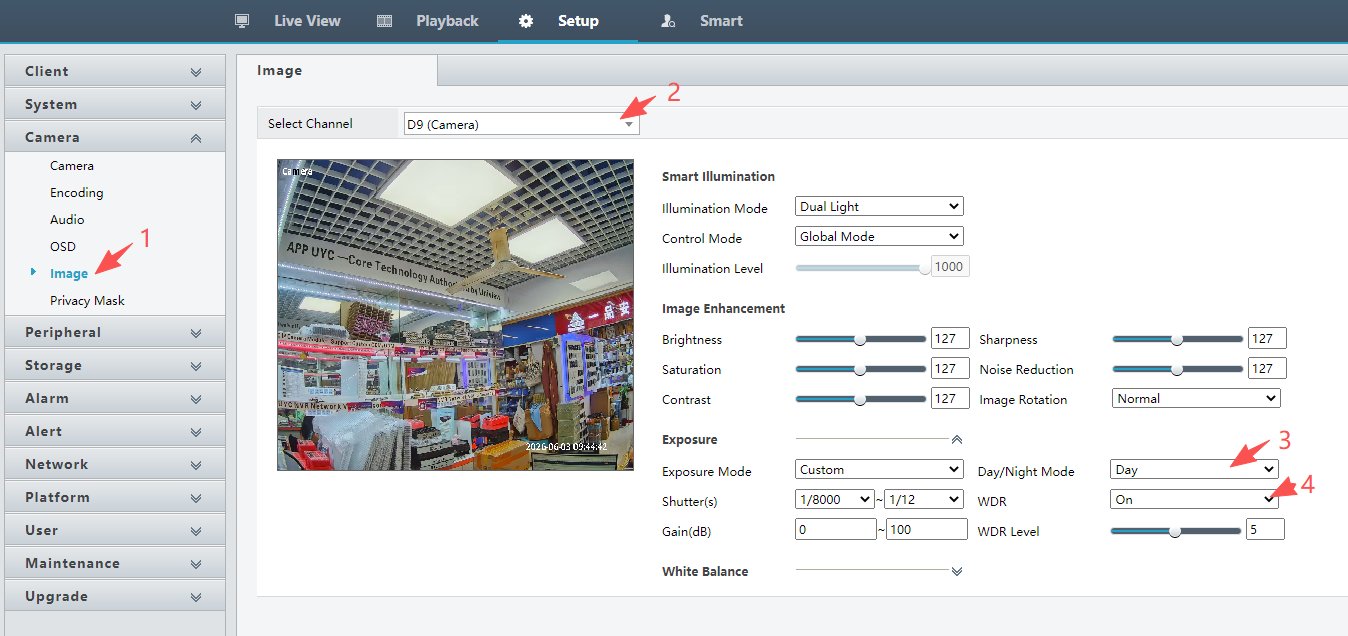
Turn on WDR for a Remoteyes IPC camera directly from the Guard Viewer NVR interface — 4 steps, no reboot required.
1.Open Image settings in Guard Viewer NVR
Log in to the Guard Viewer NVR interface. Click Setup in the top menu → expand Camera in the left sidebar → click Image.
2.Select your Remoteyes IPC channel
Use the Select Channel dropdown to choose the Remoteyes IPC camera you want to configure (e.g. D9 (Camera)).
3.Set Day/Night Mode to
DayIn the Exposure section on the right, set Day/Night Mode to Day. WDR is only available when Day mode is active.
4.Turn WDR on and save
Set WDR to On. Adjust the WDR Level slider as needed, then click Save. Changes apply immediately on your Remoteyes IPC.
Note: If WDR is greyed out in Guard Viewer NVR, confirm Day/Night Mode is set to Day first.